For PowerPoint on Mac
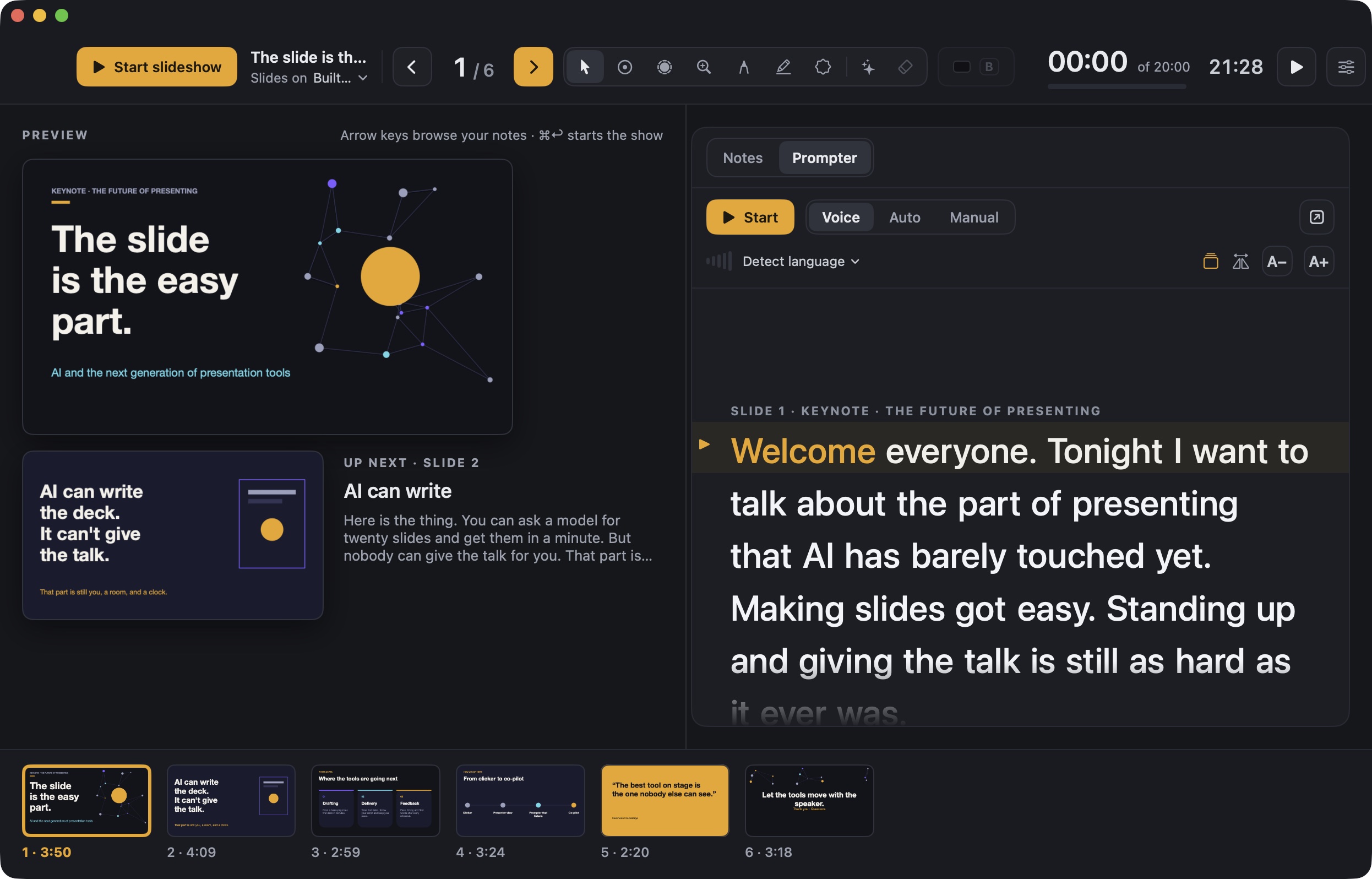
A presenter view you can resize. Somehow, that's new.
Notes, next slide and timer in a window you put anywhere. PowerPoint still plays the show.
Free · open source · macOS 14+ · needs Microsoft PowerPoint
Welcome everyone. Tonight I want to
talk about the part of presenting
Hidden from the share
 Noa
 Daniel
 Amir
 Omer
 Lior
 You









Screen 2 · the shared screen
What everyone on the call sees: the slide full screen, your laser and your camera in a round bubble. Nothing else from your laptop.
What it does
Everything you look at while you talk, in one window you control.
Resize it, move it to any display, keep it on top. Put it on the laptop while the slides play on the projector, or next to your camera on a call.
This slide, and the next
The current slide large, the next one beneath it with its first line of notes, so the segue is never a surprise.
Notes you can read
Large type you size with ⌘+ ⌘−. Hebrew and Arabic notes are right-aligned.
A timer against your plan
Elapsed time against a planned talk length (click “of 20:00” to change it), and a clock.
A filmstrip to jump
Every slide along the bottom. Click one to go there, during the show or while you rehearse.
With PowerPoint
PowerPoint still runs the show. Bema runs you.
Your animations, transitions and videos play exactly as they do today, because PowerPoint is still the one playing them. Bema drives it over AppleScript and never opens PowerPoint's own presenter view.
01 · Open
Open a deck
Right-click a .pptx in Finder and choose Open With → Bema, use the Present with Bema quick action, drag it onto the window, or press ⌃⌥P to present whatever deck is open in PowerPoint.
02 · Pick a display
Choose where the audience looks
The slideshow opens full screen on the display you pick. With only one display, it opens in a window so you can rehearse.
03 · Present
Talk from your window
Use a clicker, the arrow keys or the filmstrip. Click the slideshow itself and Bema keeps up. Restart Bema mid-talk and it picks the show back up.
Voice prompter
It scrolls when you talk, and waits when you don't.
Open the Prompter tab and your speaker notes become one continuous script. Bema listens through the microphone and keeps your place by matching what it hears to the words on the page.
- Copes with misheard and skipped words, and finds you again if you jump ahead.
- Follow slides: reach the next slide's notes and the slideshow moves with you. Use the clicker and the script jumps to that slide.
- Prefer not to be listened to? Auto scrolls at a set words-per-minute, and Manual lets you drag or click any word.
- Mirror mode for teleprompter glass. English and Hebrew tested; the language is detected from your notes.
Detached prompter
Under your camera. Out of the screen share.
Press the ↗ button and the prompter becomes its own small window. Snap it to the top centre of the screen, right under the camera, with the reading line near the top so your eyes stay close to the lens.
- Hidden from screen sharing, recordings and screenshots, using macOS's own window-sharing setting. On by default.
- Floats above other windows, and folds its controls into a thin bar you drag it by.
- Open it from anywhere with
bema://prompter?place=camera.
We tried to screenshot it for this page. macOS handed back nothing.
Pointer tools
Point at the slide the room is looking at.
Pick a tool and point or draw on the slide in your presenter window. It shows in the same spot on the audience display, on a transparent layer over PowerPoint that clicks pass straight through.
- L laser, P pen, H highlighter, E to clear. Drawings also clear when the slide changes.
- S spotlight dims everything but a circle around your pointer. M magnifies what you point at.
- T stamps a ✓, ✗, ★ or a circle. B or W blanks the screen black or white.
Privacy
Your voice stays on your Mac, whenever your language allows it.
The prompter, captions and voice commands listen to you. So here is exactly what happens to what they hear, and the code to check it.
On-device speech
Recognition runs on the Mac when Apple supports your language offline. When it doesn't, Bema tells you it's using Apple's servers.
No account, no tracking
Nothing to sign up for. The source makes no calls to the internet of its own.
Phone remote stays local
The remote and polls are served from your Mac over your Wi-Fi. The link holds a random secret, so others on the network can't drive your talk.
Asks when it needs to
Microphone, camera and Accessibility are requested the first time a feature needs them, not at launch.
Download
Install it in a minute.
Requires macOS 14 Sonoma or later and Microsoft PowerPoint for Mac. Bema doesn't replace PowerPoint; it sits next to it.
[DOWNLOAD LINK] · free · open source under [LICENSE]
Or build it from source
$ git clone [GITHUB URL]
$ cd bema
$ ./Scripts/build_app.sh --install
Needs Xcode or the command line tools with Swift 6. The script builds Bema.app, copies it to ~/Applications and registers it with Finder. Full install notes →
Open source
Read it, build it, change it.
Bema is a native SwiftUI app with no dependencies beyond macOS. Every feature on this page is in the repository, along with tests for the speech matching, voice commands and the phone remote's secret.
[GITHUB URL]
Does it work with Keynote or Google Slides?
No. Bema is built around PowerPoint for Mac and drives it through AppleScript.
Windows?
No. Bema is a native Mac app, and PowerPoint for Windows already has a resizable presenter view.
Does Bema change my deck?
No. It reads slide titles and notes straight from the .pptx and asks PowerPoint to export previews, which are cached in ~/Library/Caches/Bema.
Why does it want Accessibility permission?
Only for presenting on a second display: it lets Bema make PowerPoint's slideshow window truly full screen there. Without it, the slides still show, with a title bar.
Which languages does the voice prompter understand?
English and Hebrew are tested. Other languages Apple's speech recognition supports may work, on the Mac when Apple offers them offline.
Before your next talk